Evaluating the Easy Font Brush Stamp for Procreate: A Practical Guide
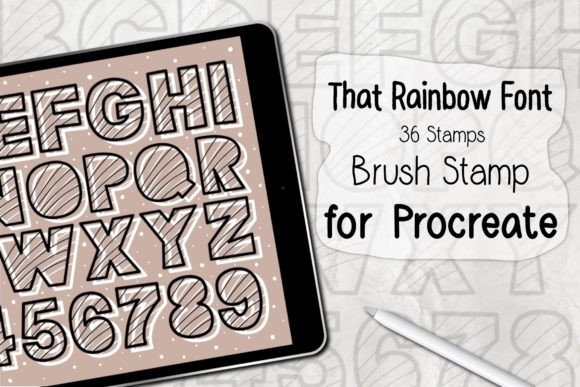
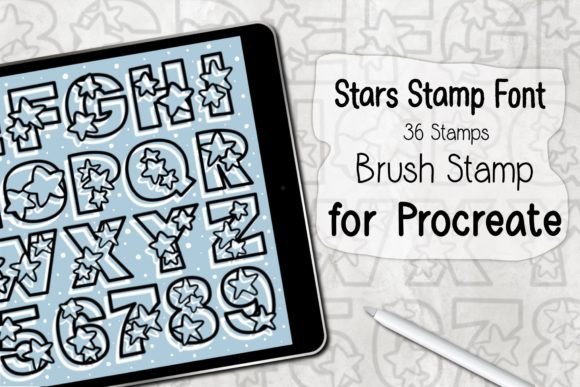
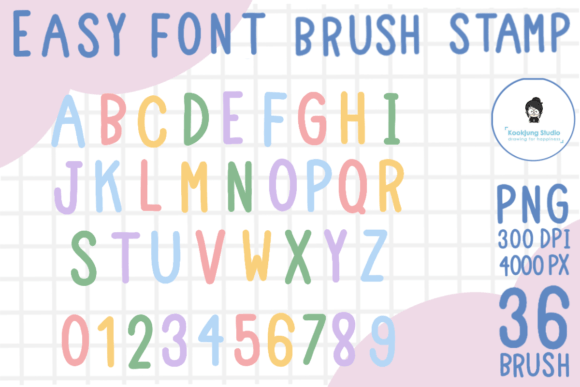
Digital illustration and graphic design on the iPad have evolved significantly, with Procreate standing out as a preferred tool for artists seeking flexibility and speed. Within this ecosystem, specialized assets like the Easy Font Brush Stamp for Procreate offer a streamlined approach to incorporating typography into visual projects. This set typically includes 26 alphabet brushes and 10 number brushes, totaling 36 distinct stamps designed to simplify the process of adding text elements without relying on complex layer management or external font installation.
For designers, illustrators, and hobbyists, understanding the utility of such a tool requires looking beyond the surface-level convenience. It is essential to evaluate how these brush stamps integrate into a workflow, what specific problems they solve, and where their limitations might necessitate alternative solutions. This article explores the practical applications, benefits, and considerations associated with using font brush stamps in Procreate.
Understanding Font Brush Stamps in Procreate
A font brush stamp differs fundamentally from standard text tools. In traditional digital design, text is often vector-based or editable, allowing for easy correction of typos and adjustment of kerning. In contrast, a brush stamp in Procreate creates a rasterized image every time it is applied to the canvas. The Easy Font Brush Stamp for Procreate set functions by assigning each letter and number to a specific brush preset. When selected, tapping the screen places that character as a textured, stylized element.
This method is particularly appealing for artists who prioritize aesthetic consistency and texture over editability. The inclusion of both uppercase alphabets and numbers 0 through 9 ensures that users can create complete phrases, dates, or numerical data points without switching between different asset libraries. The file format is typically distributed as a single zip file containing the .brushset file, which simplifies the import process. Users simply open Procreate, access the brush library, and import the file to begin using the 36 brushes immediately.
Key Benefits and Use Cases
The primary advantage of using a dedicated font brush set lies in efficiency and stylistic cohesion. For creators working on social media graphics, digital planners, or illustrated quotes, the ability to quickly stamp letters with a consistent hand-drawn or textured look can save significant time. Unlike standard fonts, which may appear sterile or overly uniform, brush stamps often retain the organic imperfections of hand-lettering, adding warmth and personality to digital compositions.
- Speed in Composition: Artists can lay out text rapidly without navigating font menus or adjusting text box boundaries.
- Texture Integration: Since the stamps are raster-based, they blend seamlessly with other painted elements, maintaining a unified artistic style.
- No External Dependencies: There is no need to install system-wide fonts or manage license files for traditional typefaces.
- Creative Flexibility: Each stamp can be resized, rotated, and colored independently, allowing for dynamic, non-linear text arrangements.
This tool is especially strong in scenarios where the text serves as a graphical element rather than informational content. For example, in greeting card design, scrapbooking, or poster art, the visual impact of the lettering often outweighs the need for perfect typographic alignment. The Easy Font Brush Stamp for Procreate allows users to experiment with layout and composition freely, treating letters as shapes rather than rigid text blocks.
Tradeoffs and Limitations
While convenient, brush stamps come with inherent tradeoffs that users must consider before integrating them into their workflow. The most significant limitation is the lack of editability. Once a letter is stamped onto the canvas, it becomes part of the pixel data. Correcting a typo requires erasing the mistake and restamping the correct letter, which can disrupt the flow if the background is complex or if precise alignment is crucial.
Additionally, resolution dependency is a critical factor. Because these are raster brushes, scaling them up significantly after placement may result in pixelation or loss of clarity. Users must ensure they are working at a sufficiently high canvas resolution to maintain quality, especially if the final output is intended for print. Furthermore, kerning and spacing must be managed manually. Unlike professional typesetting tools, Procreate’s brush engine does not automatically adjust the space between characters, requiring a keen eye for visual balance.
When to Choose Brush Stamps Over Traditional Text
Deciding whether to use the Easy Font Brush Stamp for Procreate depends largely on the project’s goals. If the objective is to create a polished, corporate document or a long-form article, traditional text tools or external design software like Adobe Illustrator would be more appropriate. However, for creative projects where authenticity and artistic flair are prioritized, brush stamps offer a distinct advantage.
Consider using this tool if:
- You are creating hand-lettered effects but lack the confidence or time to draw each letter manually.
- Your project involves short phrases, titles, or decorative elements rather than body text.
- You want to maintain a consistent, textured look that matches your painted illustrations.
- You need to work quickly within the Procreate environment without switching apps.
Conversely, if your project requires frequent edits, precise alignment, or multi-language support, you may find the limitations of a 26-letter alphabet set restrictive. In such cases, combining Procreate’s native text tool with custom imported fonts might provide a more flexible solution, albeit with a steeper learning curve regarding layer management and styling.
Installation and Workflow Integration
Integrating the Easy Font Brush Stamp for Procreate into your workflow is straightforward. After downloading the zip file, extract the contents to locate the .brushset file. Open Procreate, navigate to the brush library, and tap the plus sign or import option in the top right corner. Select the file to add the 36 brushes to your library. It is advisable to organize these brushes into a dedicated group to keep your workspace tidy and accessible.
To maximize efficiency, familiarize yourself with Procreate’s gesture controls. Using quick gestures to undo mistakes or duplicate layers can mitigate some of the editability issues associated with brush stamps. Additionally, experimenting with opacity and blending modes can help integrate the stamped text more naturally into your artwork, allowing it to interact with underlying colors and textures.
Making an Informed Decision
The Easy Font Brush Stamp for Procreate represents a niche but valuable tool for digital artists seeking to enhance their typographic capabilities without leaving the app. Its strength lies in its simplicity and artistic potential, offering a bridge between manual lettering and digital precision. However, it is not a replacement for professional typesetting tools. By understanding its limitations regarding editability and resolution, users can leverage this set effectively for projects that benefit from a hand-crafted aesthetic.
Ultimately, the decision to adopt this tool should align with your specific creative needs. If you value speed, texture, and a cohesive artistic style in your short-form text elements, this brush set offers a practical and efficient solution. For those requiring extensive textual flexibility, it may serve best as a supplementary asset rather than a primary typography tool. Evaluating your typical project requirements will help determine whether the Easy Font Brush Stamp for Procreate is a worthwhile addition to your digital toolkit.